Git and Version Control Guide for Developers
Software development is rarely a one-person, one-file process.
Projects grow. Code changes. Features get added and removed. Bugs appear. Multiple developers work on the same files. Sometimes a change that seemed like a good idea turns out to be a disaster.
Without a reliable way to track those changes, development can quickly become difficult to manage.
That is where Git and version control come in.
Git allows developers to record changes, experiment safely, collaborate with other developers and recover earlier versions of a project when something goes wrong. It has become one of the most important tools in modern software development, whether you are working alone on a small project or contributing to a large application with hundreds of developers.
This guide explains what version control is, how Git works, the most important Git commands, branching, merging, remote repositories, pull requests and practical workflows developers can use every day. These practices form an important part of the broader software development process.
What Is Version Control?
Version control is a system for tracking changes to files over time.
Instead of manually creating folders such as:
project-final
project-final-v2
project-final-v3
project-final-really-final
a version-control system records changes in a structured history.
This allows developers to answer questions such as:
- What changed?
- Who changed it?
- When was it changed?
- Why was it changed?
- Which version worked previously?
- Can we undo this change?
- What code was added in a particular release?
Version control is useful for code, but it can also be used for documentation, configuration files, scripts and other project assets.
What Is Git?
Git is a distributed version control system.
It was originally created by Linus Torvalds in 2005 during the development of the Linux kernel.
Unlike a centralized version-control system where the main history may exist primarily on a central server, Git gives each developer a complete local repository containing the project’s history.
That makes it possible to commit, inspect history and create branches without constantly communicating with a remote server.
Git is the underlying version-control technology.
Services such as GitHub, GitLab and Bitbucket provide platforms built around Git repositories, adding features such as remote hosting, pull requests, code review, issue tracking and automation.
Git vs GitHub
These two terms are frequently confused.
Git is the version-control system.
GitHub is an online platform for hosting Git repositories and collaborating around them.
You can use Git without GitHub.
You can also use GitHub as a remote location for a Git repository.
Other platforms provide similar functionality, including GitLab and Bitbucket.
The distinction is important because learning Git means learning the underlying version-control concepts rather than simply learning how to use one particular website.
Why Developers Use Git
Git solves several problems that occur naturally during software development.
Tracking Changes
Git records changes made to the project over time.
Experimenting Safely
Developers can create branches to work on experimental features without immediately changing the main codebase.
Collaboration
Multiple developers can work on different parts of a project and combine their work.
Recovering Previous Versions
If a change breaks the application, Git can help developers inspect or restore earlier versions.
Code Review
Git-based platforms make it possible to review proposed changes before they are merged into an important branch.
Release Management
Tags, branches and commit history can help teams identify the exact code used for different releases.
Understanding the Git Workflow
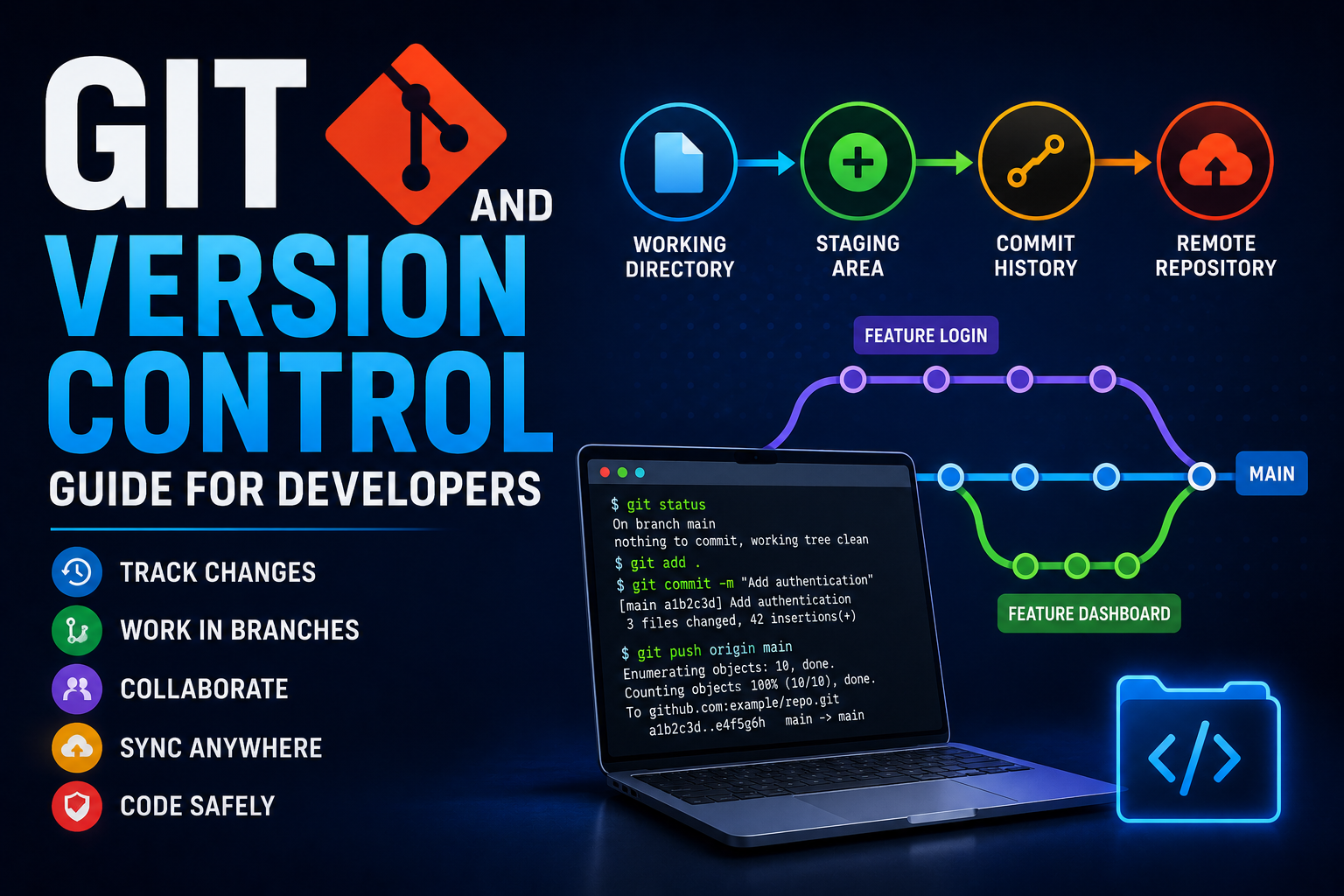
A basic Git workflow can be understood through four main areas:
- Working directory
- Staging area
- Local repository
- Remote repository
The process generally looks like this:
Edit files
↓
git add
↓
Staging area
↓
git commit
↓
Local repository
↓
git push
↓
Remote repository
Understanding this flow makes Git commands much easier to remember.
The Working Directory
The working directory is the project folder you are currently editing.
When you create or modify a file, those changes initially exist only in your working directory.
Git can detect those changes, but they have not yet been included in a commit.
You can inspect the state of the working directory with:
git statusThis is one of the most useful Git commands.
When you are unsure about what Git thinks is happening, run git status.
The Staging Area
The staging area allows you to choose which changes should be included in the next commit.
For example:
git add app.jsstages app.js.
You can stage multiple files:
git add app.js styles.cssOr stage all changes in the current directory:
git add .The staging area is useful because it allows you to create focused commits rather than automatically committing every modification you have made.
Commits
A commit is a recorded snapshot of changes.
After staging your work, you can create a commit:
git commit -m "Add user authentication"A good commit message should briefly explain what changed.
Examples include:
- Add password reset flow
- Fix checkout validation
- Update dashboard navigation
- Improve API error handling
Avoid vague messages such as:
- changes
- updates
- stuff
- fixed things
Clear commit messages make project history much easier to understand.
What Is a Git Repository?
A Git repository is a project tracked by Git.
When you initialize a project with:
git initGit creates the internal data structure needed to track changes.
You can then check the repository with:
git statusIf you clone an existing Git project, Git creates the repository automatically.
Creating a New Repository
To start tracking an existing project:
cd my-project
git init
Then add the files:
git add .Create the first commit:
git commit -m "Initial commit"At this point, the project has a local Git history.
Cloning a Repository
If a repository already exists remotely, you can copy it to your computer using:
git clone <repository-url>For example:
git clone https://example.com/my-project.gitGit downloads the project and its history.
You can then enter the directory:
cd my-projectand inspect it with:
git statusGit Branches
Branches are one of Git’s most powerful features.
A branch provides an independent line of development within the repository.
Instead of making every change directly on main, a developer can create a feature branch:
git switch -c feature/user-loginThe developer can then make changes and commit them without immediately changing the main branch.
This is particularly useful when several developers are working on the same project.
The Main Branch
The primary branch is commonly called:
mainHistorically, many repositories used master, but main is now widely used as the default branch name.
The main branch often represents code that is considered stable or ready for deployment.
A team may protect this branch so that developers cannot push changes directly to it without review.
Creating and Switching Branches
Modern Git provides:
git switch -c feature/profile-pageThis creates and switches to the new branch.
To switch to an existing branch:
git switch mainYou can list branches with:
git branchTo see both local and remote branches:
git branch -aNaming Branches
Clear branch names make collaboration easier.
Common patterns include:
feature/user-authentication
feature/payment-page
fix/login-error
fix/mobile-layout
refactor/database-layer
docs/api-guide
The exact naming convention should be agreed upon by the team.
The important thing is consistency.
Merging Branches
Once a feature is complete, its changes can be merged into another branch.
For example:
git switch main
git merge feature/user-login
Git attempts to combine the changes from the feature branch into main.
If the changes do not conflict, the merge may happen automatically.
If Git cannot safely determine how to combine the changes, it reports a merge conflict.
What Is a Merge Conflict?
A merge conflict happens when Git finds competing changes that it cannot automatically reconcile.
For example, imagine two developers modify the same section of a file.
One developer changes:
Welcome to our applicationto:
Welcome back to our applicationwhile another changes it to:
Welcome to the dashboardGit cannot know which version the team wants.
The file may contain conflict markers such as:
<<<<<<< HEAD
Welcome back to our application
=======
Welcome to the dashboard
>>>>>>> feature/dashboard
The developer must decide which version should remain, edit the file accordingly and then stage the resolved file.
After resolving the conflict:
git add .and complete the merge:
git commitThe exact process can vary depending on how the merge was initiated.
Avoiding Unnecessary Merge Conflicts
Good collaboration practices can reduce conflicts.
Developers should:
- Keep branches relatively short-lived
- Pull or fetch current changes regularly
- Avoid unnecessarily modifying the same large files
- Keep commits focused
- Communicate when working on shared code
- Merge completed work regularly
The goal is not to eliminate conflicts completely. It is to make them smaller and easier to resolve.
Git Remotes
A remote is a reference to another Git repository, usually hosted on a service or another server.
The most common remote is called:
originYou can see configured remotes with:
git remote -vA typical repository might show:
origin https://example.com/project.git (fetch)
origin https://example.com/project.git (push)
The remote allows developers to exchange commits with the shared repository.
Git Push
After creating local commits, you can send them to a remote repository:
git push origin mainFor a new feature branch:
git push -u origin feature/user-loginThe -u option establishes an upstream relationship, making future pushes easier.
After that, you can often use:
git pushwithout specifying the branch.
Git Fetch
git fetch downloads information about changes from a remote repository without automatically changing your current working files.
For example:
git fetch originThis is a safe way to see what has changed remotely before deciding what to do with those changes.
You can then inspect remote branches or compare histories.
Git Pull
git pull generally fetches remote changes and then integrates them into your current branch.
For example:
git pull origin mainIt is convenient, but developers should understand that it may modify their local branch immediately.
For more control, many developers prefer:
git fetch originfollowed by an explicit merge or rebase after inspecting the changes.
Pull vs Fetch
The difference is simple:
git fetch downloads remote information without automatically integrating it into your current branch.
git pull fetches remote information and then integrates it according to the configured pull strategy.
If you are uncertain about incoming changes, fetching first can provide more control.
GitHub Pull Requests
A pull request, often called a PR, is a proposal to merge changes from one branch into another.
For example:
feature/payment

       ↓

   Pull Request

       ↓

      main
A developer can push a feature branch to GitHub and open a pull request.
Other developers can then:
- Review the code
- Leave comments
- Request changes
- Run automated tests
- Approve the pull request
- Merge it when requirements are satisfied
Pull requests are particularly useful for teams because they separate writing code from approving code.
Pull Request vs Git Merge
These terms describe related but different things.
Git merge is the technical operation that combines histories.
A pull request is a collaboration and review mechanism provided by platforms such as GitHub.
A pull request may eventually result in a Git merge, but the pull request itself is not a Git command.
Code Review
Code review is one of the biggest benefits of Git-based collaboration platforms.
Before merging a change, another developer can inspect the proposed modifications.
A good review should consider:
- Does the code solve the intended problem?
- Is it understandable?
- Does it introduce security risks?
- Are there unnecessary changes?
- Could it break existing functionality?
- Are tests included?
- Does it follow project conventions?
Code review works best when it is combined with software testing and quality practices rather than treated as a substitute for testing.
Code review should not be about finding reasons to criticize someone else’s work.
The goal is to improve the quality of the software before changes reach important branches.
Protected Branches
Teams can protect important branches such as main.
Branch protection can require conditions such as:
- Pull requests
- Code reviews
- Passing automated tests
- No unresolved review conversations
- Up-to-date branches
- Successful status checks
This helps prevent accidental direct changes to production-critical code.
A common team workflow is:
Developer

   ↓

Feature branch

   ↓

Push

   ↓

Pull request

   ↓

Code review

   ↓

Automated tests

   ↓

Approval

   ↓

Merge into main
This creates a controlled path from development to production.
Rebasing
Rebase is another way to integrate changes.
Suppose your feature branch was created from an older version of main, and main has since moved forward.
You can update your feature branch with:
git switch feature/user-login
git rebase main
Rebase moves your commits so they appear on top of the newer base.
This can create a cleaner, more linear history.
However, rebasing rewrites commit history.
That means developers should be careful when rebasing branches that other people are already using.
Merge vs Rebase
Both approaches can integrate changes, but they produce different histories.
A merge preserves the existing branch history and creates a merge relationship when necessary.
A rebase rewrites the feature branch so its commits appear to have been created on top of a newer base.
A simplified example:
Merge:
A---B---C---M
     \     /
      D---E
Rebase:
A---B---C---D'---E'Neither approach is universally superior.
Teams should agree on a workflow rather than mixing strategies without understanding the consequences.
Git Stash
Sometimes you need to switch branches but have unfinished local changes.
You may not be ready to commit them.
Git provides stash for temporarily storing those changes.
git stashYou can then switch branches or perform other work.
Later, restore the changes:
git stash popYou can view stored stashes with:
git stash listStashing is useful, but it should not become a permanent storage system for important work.
If the changes represent meaningful progress, a temporary commit on a private branch may sometimes be clearer.
Undoing Changes
One of Git’s most valuable features is the ability to recover from mistakes.
But “undo” can mean several different things.
Discard Unstaged Changes
For a specific file:
git restore app.jsThis discards uncommitted changes in that file.
Be careful: the discarded changes may not be recoverable through ordinary Git history.
Unstage a File
If you staged a file by mistake:
git restore --staged app.jsThe changes remain in the working directory but are removed from the staging area.
Revert a Commit
If a commit has already been shared, git revert is often the safer way to undo it:
git revert <commit>Git creates a new commit that reverses the effect of the earlier commit.
Reset
git reset can move a branch reference and modify the staging area or working directory depending on the mode used.
Common forms include:
git reset --soft
git reset --mixed
git reset --hard
--hard deserves particular caution because it can discard local changes.
Before using destructive commands, make sure you understand exactly what will be removed.
Git Log
Git can show the history of commits:
git logFor a more compact view:
git log --onelineYou may see something like:
8a31f2d Add payment validation
c12b90e Fix mobile navigation
9f3d421 Update API client
The short commit hashes can be used to identify individual commits.
Git Diff
git diff shows differences between versions.
To see unstaged changes:
git diffTo see staged changes:
git diff --stagedDiffs are essential for reviewing your own work before committing.
A simple habit of running:
git diff
git status
before committing can prevent many accidental changes from entering the repository.
Git Tags
Tags allow developers to mark specific points in history.
For example:
git tag v1.0.0A tag can identify the commit associated with a particular release.
Tags are useful for:
- Software releases
- Production deployments
- Stable versions
- Milestones
- Rollback references
A repository might contain:
v1.0.0
v1.1.0
v1.2.0
v2.0.0
Semantic Versioning
Many software projects use semantic versioning, commonly written as:
MAJOR.MINOR.PATCHFor example:
2.4.1Generally:
- MAJOR changes indicate breaking changes
- MINOR changes add backward-compatible functionality
- PATCH changes fix backward-compatible problems
Teams should define their own release conventions and apply them consistently.
The .gitignore File
Not every file belongs in Git.
The .gitignore file tells Git which files or directories should not be tracked.
A typical Node.js project might include:
node_modules/
.env
dist/
*.log
This can prevent dependencies, environment secrets, generated files and logs from being accidentally committed.
Never Commit Secrets
One of the most important Git security rules is simple:
Do not commit passwords, API keys, private keys, tokens or other secrets.
For example, avoid putting sensitive credentials directly into source code:
const apiKey = "my-secret-key";Instead, use environment variables or an appropriate secret-management system.
Even deleting the secret from the latest version may not be enough if it has already entered Git history.
Once a credential has been committed and pushed publicly, assume it may have been exposed.
Revoke and rotate it.
What Happens When You Accidentally Commit a Secret?
Removing a secret from the current file does not necessarily remove it from the repository’s history.
Someone may still be able to find the earlier commit.
The correct response generally involves:
- Revoking or rotating the exposed credential
- Determining where it was exposed
- Removing the secret from relevant repository history if necessary
- Checking whether the secret was accessed or abused
- Preventing similar leaks in the future
Secret-scanning tools can also help identify credentials before they become a serious problem.
Git and Large Files
Git works particularly well with source code and text-based files.
Large binary files can be more challenging because Git’s normal history model can cause repositories to grow significantly when large files change frequently.
Projects that need to store large assets may consider Git Large File Storage (Git LFS) or a separate artifact-storage system.
The right solution depends on the project’s requirements and hosting platform.
Git Workflows
Different teams use different Git workflows.
Feature Branch Workflow
Developers create a branch for each feature or fix:
main
 ├── feature/login
 ├── feature/payments
 └── fix/navbar
Completed branches are reviewed and merged.
This is one of the easiest workflows for teams to understand.
Trunk-Based Development
Developers work in short-lived branches or make small changes directly into a shared trunk under strong automated testing and review practices.
The goal is to keep branches short and integration frequent.
Git Flow
Git Flow uses several long-lived branch types, often including:
main
develop
feature
release
hotfix
It can be useful for certain release models, although many modern teams prefer simpler workflows.
There is no universal Git workflow.
The right approach depends on team size, release frequency, deployment strategy and project complexity.
A Practical Team Workflow
A straightforward development workflow might look like this:
git switch main
git pull

git switch -c feature/new-dashboard

# Make changes

git status
git diff

git add .
git commit -m "Add new dashboard"

git push -u origin feature/new-dashboard
The developer then opens a pull request.
After review and successful automated checks, the branch can be merged.
Once the feature has been integrated, the local repository can be updated:
git switch main
git pull
This workflow is simple, predictable and easy for a team to understand.
What If Your Local Changes Block a Pull or Merge?
This is a common Git situation.
You may see an error such as:
Your local changes to the following files would be overwritten by mergeGit is protecting your work.
You generally have three choices.
Commit the Changes
If your work is ready:
git add .
git commit -m "Save local work"
Then continue with the merge or pull.
Stash the Changes
If the work is unfinished:
git stashPerform the required Git operation, then restore the work:
git stash popDiscard the Changes
If you genuinely do not need them:
git restore .Be extremely careful with this option.
If untracked files are also causing a conflict, they may need to be moved, renamed or deliberately removed before the merge can proceed.
Git Best Practices
A few habits can make Git dramatically easier to use.
Commit Small, Logical Changes
A commit should represent a meaningful unit of work.
Instead of one enormous commit containing a month’s worth of changes, create smaller commits where appropriate.
Write Clear Commit Messages
Explain what changed.
Pull or Fetch Regularly
Do not allow your branch to drift far behind the shared branch.
Review Before Committing
Use:
git status
git diff
Keep Branches Focused
One branch should generally correspond to one feature, fix or related piece of work.
Do Not Commit Secrets
Use environment variables and secret-management tools.
Protect Important Branches
Require reviews and automated checks for critical branches.
Back Up Important Work
A Git repository is not automatically a complete backup strategy. Consider the importance of your repository and the protection offered by your remote hosting and backup systems.
Common Git Mistakes
Working Directly on Main
Direct changes to an important branch can bypass review and make mistakes harder to control.
Using Huge Commits
Large commits make code review and debugging harder.
Pulling Without Understanding Local Changes
A pull can introduce changes that interact with unfinished local work.
Force-Pushing Carelessly
Force-pushing can rewrite remote history and potentially remove commits other developers depend on.
Ignoring Merge Conflicts
Conflict markers must be resolved correctly before the resulting code is considered trustworthy.
Committing Generated Files
Build outputs and dependencies do not always belong in the repository.
Storing Secrets in Git
A .env file containing credentials should generally not be committed.
Treating Git as a Backup Alone
Git tracks history; it does not automatically protect against every form of data loss.
Understanding Force Push
You may eventually encounter:
git push --forceForce pushing can be useful when history has intentionally been rewritten, such as after certain rebases.
But it can also overwrite remote history.
A safer alternative in many situations is:
git push --force-with-leaseThis adds a check intended to reduce the chance of overwriting changes you have not seen.
Force pushing should be used deliberately, particularly on shared branches.
Git for Solo Developers
Git is not only for teams.
Even if you work alone, Git provides:
- Change history
- Experimentation through branches
- Easy rollback
- Release tracking
- Safer refactoring
- A record of how the project evolved
A solo developer can benefit enormously from committing work regularly.
You do not need a complicated workflow to gain these advantages.
Git for Teams
For teams, Git becomes more than a history system.
It becomes a collaboration framework.
Branches separate work. Commits document changes. Pull requests provide review. Automated checks verify code. Protected branches establish boundaries.
When these practices are combined, Git can help teams move quickly without giving up control.
A Beginner’s Git Command Cheat Sheet
Here are some of the commands developers use most often:
| Command | Purpose |
|---|---|
git init |
Create a new local repository |
git clone |
Copy an existing repository |
git status |
Show the current repository state |
git add |
Stage changes |
git commit |
Record staged changes |
git log |
View commit history |
git diff |
Inspect changes |
git branch |
List or manage branches |
git switch |
Change branches |
git merge |
Combine branch histories |
git rebase |
Reapply commits onto another base |
git fetch |
Download remote changes |
git pull |
Fetch and integrate remote changes |
git push |
Upload local commits |
git stash |
Temporarily store changes |
git restore |
Restore files or unstage changes |
git revert |
Create a commit that reverses another commit |
git tag |
Mark a specific point in history |
git remote |
Manage remote repositories |
A Simple Git Mental Model
If Git feels confusing, remember this basic sequence:
Edit → Stage → Commit → Push
You edit files.
Then:
git add .to choose what belongs in the next commit.
Then:
git commit -m "Describe the change"to record it locally.
Then:
git pushto send it to the remote repository.
When other developers make changes, you can use:
git fetchto see what exists remotely, or:
git pullwhen you are ready to integrate those changes according to your team’s workflow.
That simple model covers a surprising amount of everyday Git usage.
Why Learning Git Is Worth the Effort
Git can initially feel unnecessarily complicated.
Commands such as rebase, reset, revert, stash, fetch and merge can be intimidating when you first encounter them.
But Git becomes much easier once you understand the underlying concepts.
You are not memorizing random commands.
You are manipulating a history of snapshots, branches and relationships between those snapshots.
Once that mental model clicks, Git becomes one of the most valuable tools in a developer’s toolkit.
Building Confidence One Commit at a Time
The best way to learn Git is not to memorize every command.
Start with the fundamentals:
Repository

   ↓

Working directory

   ↓

Staging area

   ↓

Commit

   ↓

Branch

   ↓

Remote repository

   ↓

Pull request

   ↓

Code review

   ↓

Merge
Practice these concepts on small projects before experimenting with complicated history rewriting.
And when something goes wrong, do not immediately run a destructive command just because a command appeared in a forum or tutorial. First inspect the repository with:
git status
git log --oneline
git diff
Understanding what Git believes is happening is usually the first step toward fixing it.
Git’s real power is not that it prevents developers from making mistakes. It is that it gives them a structured history, tools for collaboration and—when used correctly—a way to recover from many of those mistakes.
For modern developers, learning Git is therefore much more than learning a collection of terminal commands. It is learning how to manage change safely, collaborate effectively and build software with a history that both individuals and teams can understand.