How Desktop Applications Work on Personal Computers
Every time someone opens a web browser, edits a document, plays music or launches a photo editor on a personal computer, they are interacting with a desktop application.
These programs can look simple on the surface. A user clicks an icon, a window appears and the software responds to commands. Behind that familiar interface, however, a desktop application relies on multiple layers of hardware and software working together.
Understanding how desktop applications work provides a useful look at what happens inside a computer whenever a program is running—from the moment it is launched to the moment it saves a file and closes.
For a broader overview of how desktop applications fit within the wider software ecosystem, see The Complete Guide to Apps.
What Is a Desktop Application?
A desktop application is software designed to run directly on a personal computer rather than primarily through a web browser.
Examples include:
-
Word processors
-
Photo and video editors
-
Music players
-
Accounting software
-
Games
-
Programming tools
-
File-management utilities
-
Design applications
-
Communication programs
Desktop applications can be installed on operating systems such as Windows, macOS or Linux.
Unlike a website, which typically runs inside a browser and relies heavily on remote servers, a desktop application usually has software components stored locally on the computer. Some modern desktop applications also connect to cloud services, but they still provide a local program that runs on the user’s device.
The Operating System Provides the Foundation
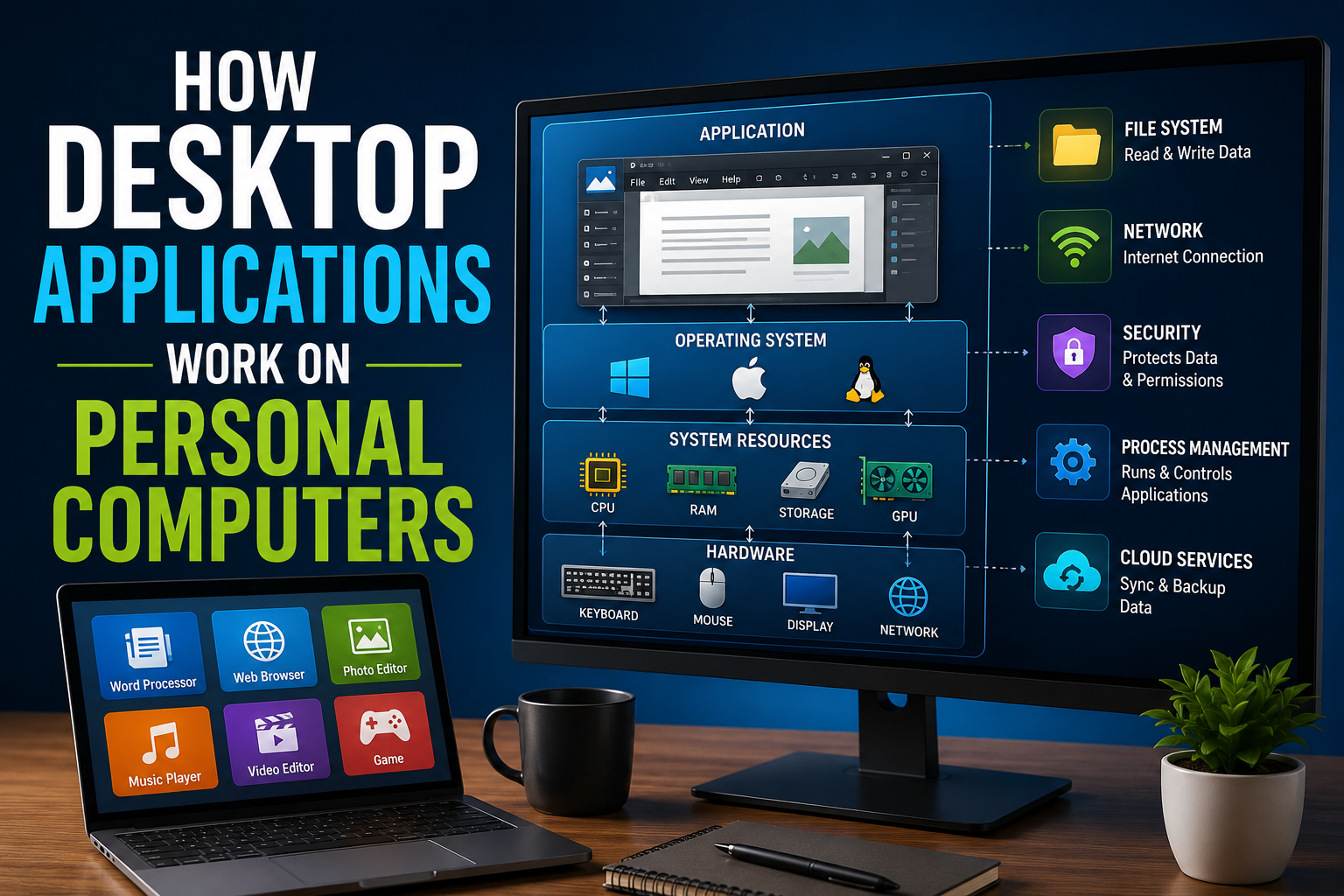
A desktop application does not normally communicate directly with every piece of computer hardware.
Instead, it works through the operating system.
Windows, macOS and Linux manage important resources such as memory, storage, processors, displays, keyboards and network connections.
When an application needs to perform an operation, it can request the necessary service from the operating system.
For example, if a photo editor wants to open an image from a hard drive or solid-state drive, it uses operating-system functions to access the file.
The operating system acts as an intermediary between applications and much of the underlying hardware.
This arrangement provides several advantages.
Applications do not need to understand the exact electrical or physical operation of every storage device, keyboard or display. The operating system provides standardized interfaces that software can use.
For a deeper explanation of this foundation, see The Complete Guide to Operating Systems.
What Happens When an Application Starts?
Launching a desktop application involves several steps.
When a user double-clicks an application icon, the operating system identifies the executable program and begins loading it.
The program’s instructions and necessary data are transferred from storage into the computer’s working memory, usually RAM.
The processor then begins executing those instructions.
Depending on the application, additional components may also be loaded.
These could include:
-
Configuration files
-
Libraries
-
Graphics resources
-
Fonts
-
Plugins
-
Security components
-
User preferences
-
Cached data
Once the necessary components are available, the application initializes itself and creates its user interface.
A window, menus, buttons and other interface elements then appear on the screen.
This visible layer is what allows people to interact with the underlying application, much like the interface described in User Interface Software Explained: How People Use Apps.
The CPU Executes the Program’s Instructions
At the heart of every running application is the central processing unit, or CPU.
Software is ultimately represented as instructions that the processor can execute.
Modern programming languages allow developers to write applications using relatively human-readable code. That code is then processed into forms the computer can execute, depending on the programming language and development approach.
For example, an application might contain logic equivalent to:
-
Wait for the user to click a button.
-
Read the selected file.
-
Process the information.
-
Display the result.
-
Save the changes if requested.
The CPU performs the computational work necessary to carry out these instructions.
Modern processors can execute enormous numbers of operations very quickly, making complex applications appear to respond almost instantly.
RAM Gives Applications Working Space
Storage and memory perform different jobs.
An application can be permanently stored on an SSD or hard drive, but the CPU needs fast-access working memory while the program is running.
That is where RAM comes in.
When an application launches, portions of its code and data are loaded into RAM.
The application may also use RAM to store information temporarily while it operates.
A photo editor, for example, might keep an image, editing history and other working information in memory while the user makes changes.
Applications that work with large files or complex datasets can therefore require substantial amounts of RAM.
If available memory becomes limited, the operating system may have to move some information between RAM and storage, potentially reducing performance.
Storage Holds Applications and Data
Storage devices provide persistent space for programs and files.
When a user installs an application, its files are generally written to an SSD or hard drive.
The application remains there even after the computer is turned off.
The same applies to documents, photographs, videos, music and other user data.
When the application is opened again, it can retrieve the necessary information from storage.
Modern SSDs are particularly important to application performance because they can provide much faster data access than traditional mechanical hard drives.
However, storage speed is only one part of the overall experience. CPU performance, RAM, graphics hardware and the efficiency of the application itself can all influence how quickly a program responds.
The Graphics Processor Handles Visual Work
Many desktop applications also rely on a graphics processing unit, or GPU.
GPUs were originally associated primarily with rendering graphics and games, but they are now used for a much broader range of workloads.
Photo and video editing applications can use GPUs to accelerate certain effects. Design software can use them to display complex scenes. Artificial-intelligence applications may use GPUs for highly parallel computations.
The GPU is particularly effective at performing many similar mathematical operations simultaneously.
The CPU and GPU therefore often work together.
The CPU handles general-purpose processing and coordinates application activity, while the GPU can accelerate certain graphics or computational tasks.
The User Interface Connects People to Software
Most desktop applications provide a graphical user interface, commonly called a GUI.
The GUI includes elements such as:
-
Windows
-
Menus
-
Buttons
-
Toolbars
-
Dialog boxes
-
Text fields
-
Icons
-
Sliders
These components provide a visual way for users to interact with the application’s underlying functionality.
When someone clicks a button, the application receives an event.
The program then determines what that event means.
For example, clicking Save could cause the application to convert the current document into a specific file format and request that the operating system write it to storage.
The user sees a simple button press.
Behind it, multiple software operations may occur.
Applications Are Often Event-Driven
Many desktop applications operate around an event loop.
Rather than continuously performing one task, the program waits for events such as:
-
Mouse clicks
-
Keyboard input
-
Window resizing
-
File changes
-
Network responses
-
Timers
-
System notifications
When an event occurs, the application processes it and determines what should happen next.
For example, pressing a key inside a text editor generates an input event. The application receives the event, determines which character or command it represents and updates the document.
The interface is then redrawn so the user can see the change.
This cycle happens extremely quickly.
Libraries Save Developers From Rebuilding Everything
Desktop applications rarely contain every function they need from scratch.
Developers can rely on software libraries that provide reusable functionality.
A library might provide tools for:
-
Drawing graphical interfaces
-
Reading image formats
-
Playing audio
-
Encrypting information
-
Communicating over networks
-
Processing databases
-
Rendering 3D graphics
Using libraries saves development time and reduces the amount of code that programmers have to create themselves.
Operating systems also provide application programming interfaces, commonly called APIs, that allow software to interact with system services.
For example, an application can use an operating-system API to open a file, create a window or communicate with a connected device.
Some Applications Use Multiple Processes
Modern desktop software does not always run as one single process.
A process is an instance of a running program with its own allocated resources and execution environment.
Large applications may divide their work among multiple processes.
A web browser, for example, may separate different tasks or components to improve stability and security.
If one component encounters a problem, isolating it from other components can reduce the chance that the entire application will fail.
Other applications may use multiple threads within a process instead.
Threads Allow Multiple Tasks to Progress
A thread represents a sequence of instructions that can be executed within a process.
Applications can use multiple threads to handle different jobs.
For example, a program might use one thread to keep the interface responsive while another performs a lengthy calculation.
This is particularly important for modern applications.
Without appropriate background processing, a large operation could temporarily freeze the interface, making it appear that the program has stopped working.
Multithreading can allow the application to continue responding to user input while other work happens in the background.
Networking Connects Desktop Applications to the Internet
A desktop application does not necessarily operate entirely offline.
Many modern programs communicate with remote servers.
A desktop email client might connect to an email provider. A cloud-storage application might synchronize files. A collaboration application may maintain a persistent connection to online services.
When an application sends or receives information, the operating system’s networking components help move data through the computer’s network connection.
The data may then travel through routers, internet service providers and remote servers before reaching its destination.
This means a modern desktop application can combine local computing with cloud-based services.
Cloud Features Have Changed Desktop Software
Traditional desktop software stored most of its information locally.
Modern applications increasingly combine local and cloud computing.
A document-editing application might store a local copy for fast access while synchronizing changes with an online account.
A photo application could maintain a local library while backing up images to cloud storage.
This hybrid approach can provide convenience and access across multiple devices.
However, it also introduces dependencies on internet connectivity, online accounts and remote services.
An application that appears to be a desktop program may therefore rely on a substantial amount of infrastructure outside the user’s computer.
For more context on this shift, see the Complete Guide to Cloud Software and SaaS.
Files Are Structured Data
When an application saves a document, it generally does not simply store the information exactly as it appears on screen.
Instead, it converts the information into a particular file format.
A word processor might store text, formatting, images and metadata in a structured document format.
A photo editor may store pixels along with information about layers, adjustments and other editing data.
The file format tells the application how to interpret the stored information when the file is opened again.
Different applications may therefore use different formats for similar types of data.
This also connects desktop applications with the broader systems used to organize digital information. File management software provides specialized tools for storing, organizing, finding and managing files across a computer.
Security Controls What Applications Can Do
Operating systems also place restrictions on applications.
These controls are important because software running on a computer can potentially access sensitive information or perform harmful actions.
Depending on the operating system and security configuration, an application may require permission to access:
-
Files and folders
-
Cameras
-
Microphones
-
Location information
-
Network resources
-
External devices
Modern security systems attempt to limit unnecessary access.
Applications may also use encryption to protect sensitive information and authentication systems to verify users.
Keeping both the operating system and applications updated is an important part of maintaining these protections.
Why Applications Sometimes Crash
Desktop applications can fail for many reasons.
A programming error may cause the software to perform an invalid operation. A corrupted file may contain information the program cannot process correctly. Insufficient memory or hardware problems can also contribute to instability.
Applications can also encounter unexpected conditions that developers did not anticipate.
Modern operating systems generally isolate applications so that a crash does not necessarily bring down the entire computer.
When an application stops responding, the operating system can often terminate the affected process while leaving other programs running.
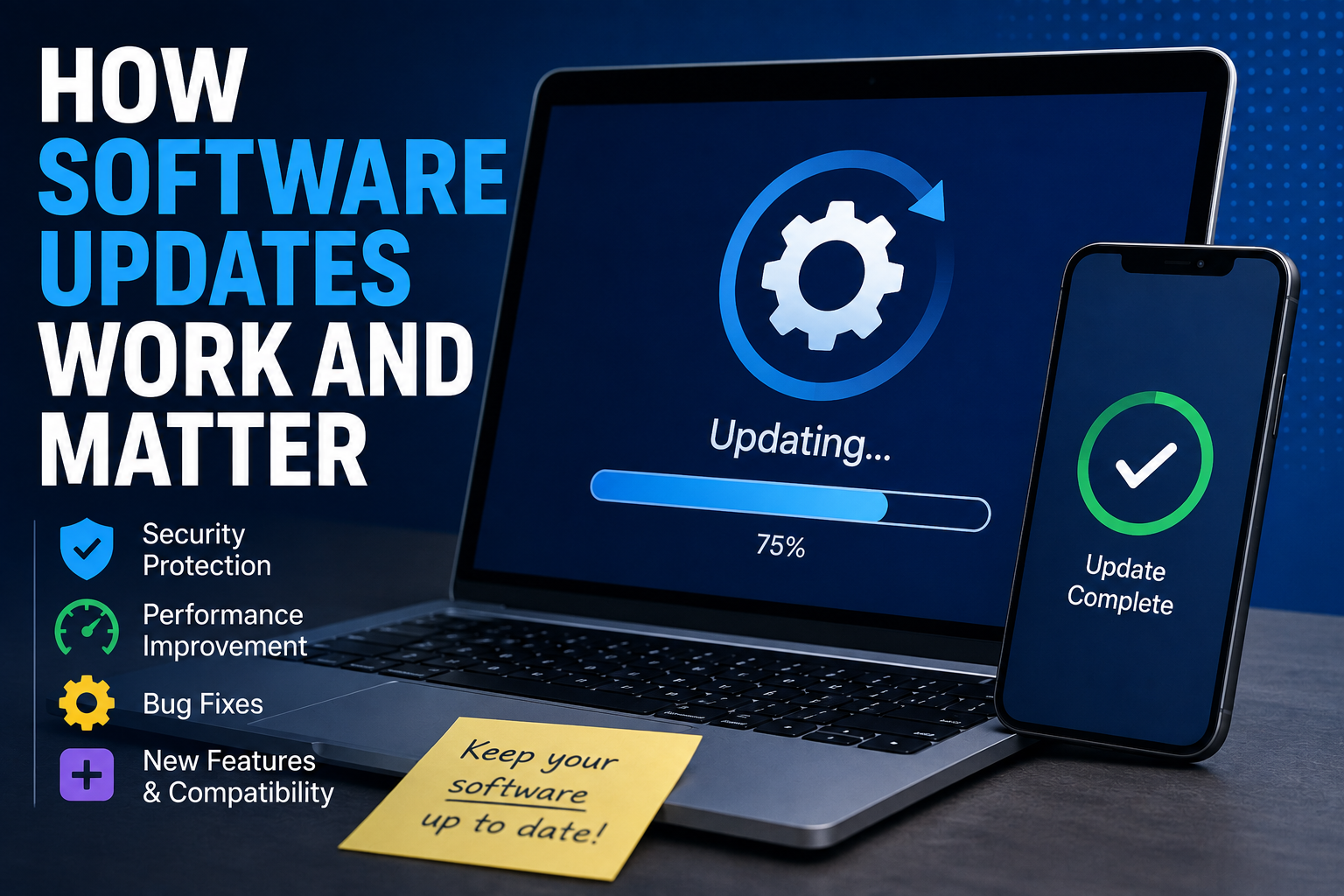
Updates Add Features and Fix Problems
Software development does not end when an application is released.
Developers regularly issue updates to fix bugs, improve performance, address security vulnerabilities and introduce new features.
Some applications update automatically. Others allow users to choose when updates are installed.
An update may replace parts of the application’s executable files, add new libraries or modify configuration and data structures.
For applications connected to online services, updates can also be necessary to maintain compatibility with changing server infrastructure.
For a broader explanation of how this process works, see How Software Updates Work and Matter.
Why Different Operating Systems Need Different Software
An application designed specifically for Windows cannot necessarily run directly on macOS or Linux.
Operating systems provide different APIs, file structures, security mechanisms and system libraries.
Developers can address this in several ways.
They may create separate versions of the application for different operating systems. They may use cross-platform frameworks that allow much of the same code to run on multiple systems. Some applications can also use compatibility layers or virtualization.
This is why software developers must consider the target operating environments when designing desktop applications.
Desktop Applications Are Becoming More Connected
The traditional distinction between desktop software and online services is becoming less clear.
Many modern applications combine local processing, cloud storage, online accounts and artificial intelligence services.
A user may open an application installed on a PC, process information locally, send selected data to a remote server and receive results that are displayed in the same desktop interface.
This hybrid architecture can provide powerful capabilities while allowing some operations to continue locally.
It also means users should understand what information an application stores on their computer and what information it sends elsewhere.
The Software Behind Every Click
A desktop application may appear to be nothing more than a window on a computer screen, but its operation involves a coordinated chain of systems.
The user provides input through a keyboard, mouse, touchscreen or other device. The application processes that input using its own code and software libraries. The operating system manages access to hardware and system resources. The CPU performs general computations, while the GPU can accelerate graphics and other parallel workloads. RAM provides temporary working space, while storage preserves programs and data.
For connected applications, networks and remote servers add another layer to the process.
All of these components work together in fractions of a second.
That is what makes modern desktop software feel simple to use even though a considerable amount of computing happens behind every click. Understanding these layers also makes it easier to appreciate why application performance, security, compatibility and reliability depend not on a single component, but on the entire software and hardware ecosystem working together.