**How to Install Software Safely
Installing software is one of the most common tasks people perform on computers and mobile devices. Whether it is a productivity application, media player, game, security program, design tool, or business application, the process often appears straightforward: find the software, download it, run the installer, and start using it.
But software installation also creates an important security checkpoint.
A malicious or compromised installer can expose personal information, install unwanted programs, alter system settings, or give attackers access to a device. Even legitimate software can create problems when downloaded from unreliable sources, installed with unnecessary permissions, or left without important security updates.
Safe installation therefore involves more than clicking the “Install” button. Users need to consider where software comes from, whether it is authentic, what permissions it requests, what other components it installs, and how it will be maintained afterward.
Why Safe Software Installation Matters
Software has access to parts of a device that ordinary files may not.
Depending on its purpose and permissions, an application may be able to access:
- Files and folders
- Cameras
- Microphones
- Contacts
- Location information
- Network connections
- System settings
- Stored credentials
- Other applications
A legitimate application may need some of these permissions to function correctly. A malicious application may request them for harmful purposes.
This makes the installation process an important opportunity to evaluate whether software should be trusted before allowing it onto a device.
Download Software From Trusted Sources
One of the most effective ways to reduce installation risks is to obtain software from a trustworthy source.
For desktop applications, this often means using the developer’s official website or a reputable operating-system app store.
For mobile devices, official app stores provide an additional layer of screening and distribution controls, although users should still evaluate individual applications carefully.
Avoid downloading software from:
- Unknown websites
- Unofficial download portals
- Suspicious advertisements
- Random file-sharing pages
- Untrusted links in messages
- Pop-up windows claiming your device is infected
Search results can sometimes lead users to websites that imitate legitimate software publishers. Checking the actual developer and website before downloading can help prevent this problem.
Verify the Software Developer
Before installing an application, identify who created it.
A recognizable developer with an established website, documentation, support resources, and a history of maintaining its products generally provides more confidence than an unknown publisher with little information available.
Check:
- Developer or company name
- Official website
- Product name
- Software description
- Supported operating systems
- Contact information
- Release information
- Privacy documentation
Be cautious when the developer’s identity is unclear or when the download page contains excessive advertising, misleading buttons, or unrelated downloads.
Check the Website Address Carefully
Cybercriminals sometimes create websites that look almost identical to legitimate software pages.
Small differences in spelling, domain names, or page design can be easy to miss.
Before downloading, look carefully at the website address and make sure it corresponds to the expected developer.
For popular applications, avoid assuming that the first search result is automatically the official download page.
It is often safer to navigate directly to a developer’s known website or use the software publisher’s official distribution channel.
Avoid Cracked and Pirated Software
Unauthorized copies of commercial software can carry significant security risks.
Cracked applications may have been modified to bypass licensing controls. That modification can also provide an opportunity for malicious code to be inserted into the program.
Pirated software may contain:
- Malware
- Spyware
- Password stealers
- Ransomware
- Hidden cryptocurrency miners
- Remote-access tools
- Unwanted browser extensions
There can also be legal and licensing consequences associated with using unauthorized software.
If a paid application is too expensive, look for legitimate free versions, open-source alternatives, educational licenses, trial versions, or lower-cost plans instead.
Check System Requirements
Security is not the only reason to verify software before installation.
Software should also be compatible with the device.
Check requirements such as:
- Operating-system version
- Processor architecture
- Available memory
- Storage capacity
- Graphics requirements
- Required libraries or frameworks
- Internet connectivity
Installing incompatible software can cause crashes, performance problems, or other system issues.
Read the Software Description
Before installing an application, understand what it is designed to do.
A legitimate installer should provide enough information for users to understand its purpose.
Be suspicious if software makes vague claims such as:
- “Instantly fix everything”
- “Guaranteed maximum performance”
- “Your computer is dangerously infected”
- “Install now to prevent immediate damage”
Scare tactics are frequently used to encourage people to install software without carefully evaluating it.
Be Careful With Fake Security Warnings
One particularly common tactic involves websites displaying fake warnings that claim a computer or phone has been infected.
A page may show alarming messages such as “virus detected” or “security threat found” and then encourage the user to download a particular application.
A website generally cannot determine the full security condition of a device simply by displaying a webpage.
If a security warning appears unexpectedly, close the page and use the device’s legitimate security software or operating-system security tools to investigate.
Check User Reviews Carefully
Reviews can provide useful information, but they should not be treated as definitive proof that software is safe.
Look for patterns rather than focusing on a single review.
Potential warning signs include users reporting:
- Unexpected advertisements
- Unwanted programs
- Excessive permissions
- Suspicious behavior
- Difficult cancellation
- Unexplained charges
- Browser changes
- Poor uninstall behavior
Also consider whether reviews appear authentic.
A large collection of repetitive five-star reviews posted within a short period may provide less useful information than detailed reviews describing actual experiences.
Understand What Permissions Software Requests
Permissions determine what an application can access or do.
For example, a photo-editing application may reasonably need access to photographs. A navigation application may need location information. A video-conferencing application may need access to a microphone and camera.
However, permission requests should make sense for the application’s purpose.
Ask:
Why does this application need this access?
If the answer is unclear, investigate before continuing.
The broader principles of protecting applications and devices are covered in the [Guide to Software Security]Guide to Software Security.
Pay Attention During Installation
Many installers use multiple screens before the software is actually installed.
These screens may contain:
- License agreements
- Privacy notices
- Optional components
- Additional software offers
- Default settings
- Permission requests
- Browser configuration options
Do not automatically click “Next” through every screen.
Read the important choices, particularly those involving additional programs, browser settings, data collection, and permissions.
Watch for Bundled Software
Some installers may offer additional applications or browser extensions.
These extras may be legitimate, but they are not necessarily required for the main program to function.
Look for options such as:
- “Recommended installation”
- “Custom installation”
- “Optional offer”
- “Install additional software”
- “Set as default”
- “Change homepage”
A custom or advanced installation option can sometimes provide greater control over what gets installed.
Use the Operating System’s Security Features
Modern operating systems include security mechanisms designed to help identify potentially harmful software.
Depending on the device, these may include:
- Application reputation checks
- Malware scanning
- Permission controls
- Code-signing verification
- Firewall protection
- Sandboxing
- App-store security controls
Do not disable these protections simply because an installer asks you to unless you have a specific, well-understood reason and are confident about the software.
An installer that insists you disable security protections should receive additional scrutiny.
Understand Digital Signatures
Some software publishers digitally sign applications and installation packages.
A valid digital signature can help verify that software came from the stated publisher and has not been altered since it was signed.
Digital signatures are not an absolute guarantee that software is safe. A legitimate publisher’s account or signing credentials could potentially be compromised.
Nevertheless, verifying signatures where the operating system provides that capability can add another layer of confidence.
Check File Names and Extensions
Before opening a downloaded installer, examine the file.
Be cautious with files that have unusual names or unexpected extensions.
For example, an installer that is supposed to be an application but arrives as a document, script, or executable with a suspiciously misleading name deserves further investigation.
File extensions can sometimes be hidden by operating-system settings, so users should understand how their device displays file types.
Scan Downloads Before Installing
Security software can sometimes scan downloaded files before they are opened.
If a file is flagged as suspicious, do not simply ignore the warning because you want the software.
Investigate the alert and verify that the file was obtained from the legitimate publisher.
If the warning cannot be resolved confidently, do not install the software.
Keep Your Operating System Updated
Safe software installation is closely connected to keeping the operating system current.
Operating-system updates can include security fixes that protect against vulnerabilities affecting the device.
Installing software on an outdated system can therefore increase risk, particularly when the application interacts closely with the operating system or network.
Regularly check whether your device is receiving security updates and whether the operating system remains supported.
Keep Installed Software Updated
Installing software safely does not end once the application opens successfully.
Software developers regularly release updates to fix bugs, improve compatibility, add features, and address security vulnerabilities.
Users should therefore maintain applications after installation.
The [How Software Updates Work and Matter]How Software Updates Work and Matter guide explains why updates are an important part of maintaining software over time.
Automatic updates can be useful when offered by trustworthy applications, although users should still review what is being updated and where the software comes from.
Be Careful With Unexpected Update Prompts
Not every update notification is legitimate.
A website might display a fake message claiming that a browser, media player, or security application needs an urgent update.
Instead of clicking the notification, open the actual application and check for updates through its built-in update mechanism.
Alternatively, visit the developer’s official website directly.
This reduces the chance of accidentally downloading malicious software disguised as an update.
Create a Restore Point or Backup When Appropriate
For significant software installations, particularly applications that modify system components, creating a backup can provide an additional safety net.
A system restore mechanism may also be useful on operating systems that support it.
Before installing unfamiliar software, consider whether important files are backed up somewhere separate from the device.
Backups are particularly important because some malicious software can encrypt or destroy files.
Back Up Important Files Regularly
A backup strategy should not depend on whether a particular software installation goes wrong.
Important documents, photographs, business records, schoolwork, and other valuable files should be backed up regularly.
A useful approach can involve keeping more than one copy and ensuring that at least one backup is not permanently connected to the primary device.
If malware compromises the computer, a disconnected or otherwise protected backup may remain available for recovery.
Use Separate User Accounts When Appropriate
On computers shared by several people, separate user accounts can provide better organization and security.
A standard user account can also limit the ability of software to make system-wide changes compared with an administrator account.
When software genuinely requires administrative privileges, the request should be treated as an important security decision rather than an automatic step.
Users should understand why elevated permissions are required before approving them.
Avoid Giving Every Application Administrator Access
Administrative privileges can allow software to make substantial changes to a computer.
Legitimate applications sometimes require these privileges for installation or specific functions.
However, granting administrative access to unknown software can increase the potential impact of malicious behavior.
Whenever possible, use the least amount of access necessary for the software to perform its intended function.
Check Privacy Policies for Sensitive Applications
Some applications collect substantial amounts of information.
This can include:
- Usage information
- Device identifiers
- Location data
- Contacts
- Browsing activity
- Diagnostic information
- Account information
Before installing applications that handle sensitive information, review their privacy practices.
Consider what information the application collects, why it collects it, how long information may be retained, and whether it is shared with other organizations.
Be Especially Careful With Financial Software
Applications used for banking, investing, payments, accounting, or other financial activities deserve additional scrutiny.
Only install financial applications from trusted sources.
Verify:
- The official developer
- The application’s name
- The publisher information
- The official website
- Required permissions
- Available security features
Never install a financial application simply because someone sent you a download link through an unexpected message.
Be Careful With Browser Extensions
Browser extensions can be useful for productivity, shopping, accessibility, security, and many other purposes.
However, extensions may receive substantial access to browser activity depending on their permissions.
Before installing one, consider:
- Who developed it?
- What permissions does it request?
- Is it actively maintained?
- Does it have a clear privacy policy?
- Are there credible reviews?
- Is the requested access necessary?
Remove extensions that are no longer needed.
Mobile Apps Require the Same Caution
Smartphones can create a false sense of security because applications are often installed through official app stores.
App stores provide important safeguards, but they cannot eliminate every risk.
Before installing a mobile application, check:
- Developer information
- App description
- User reviews
- Download history
- Requested permissions
- Privacy information
- Recent update activity
Be especially cautious with applications requesting sensitive permissions that appear unrelated to their advertised purpose.
Avoid Software From Unexpected Messages
Emails, text messages, social-media messages, and workplace communications can contain links to software downloads.
Even when a message appears to come from someone you know, their account may have been compromised.
If someone unexpectedly asks you to install software, verify the request through another communication channel before downloading anything.
This is especially important when the software is described as a security tool, remote-support application, document viewer, or urgent update.
Be Careful With Remote-Access Software
Remote-access applications can allow another person to control or view a computer.
There are legitimate reasons for using these tools, including technical support and remote work.
However, criminals sometimes use them to convince victims to grant access to their devices.
Never give remote access to an unknown person simply because they claim to be from a bank, technology company, government agency, or security provider.
If legitimate technical support is required, independently verify the organization and initiate the support process through an official channel.
Uninstall Software You No Longer Need
Software that is no longer used can create unnecessary maintenance and security exposure.
Old applications may contain vulnerabilities if they stop receiving updates.
Periodically review installed software and remove programs that are:
- No longer needed
- No longer supported
- Replaced by another application
- Suspicious
- Unused for a long period
Uninstalling unused software can also free storage space and simplify device maintenance.
Check for Leftover Components
Some applications leave behind files, services, extensions, or configuration settings after removal.
For most ordinary applications, this is not a major concern.
However, users removing security tools, system utilities, development environments, or other complex applications may want to follow the developer’s official removal instructions.
Avoid downloading random “cleaner” programs simply because they claim to remove leftover files. Some such utilities may create their own security risks.
What to Do If You Accidentally Install Suspicious Software
If you believe you have installed malicious or suspicious software, avoid continuing to use the application.
Depending on the situation, consider:
- Disconnecting the device from the internet.
- Running a trusted security scan.
- Removing the suspicious application.
- Checking browser extensions and settings.
- Reviewing recently installed programs.
- Changing important passwords from a separate trusted device if credentials may have been exposed.
- Checking financial accounts for unusual activity.
- Restoring the device from a trusted backup when appropriate.
If the device contains highly sensitive information or appears seriously compromised, professional technical assistance may be appropriate.
Watch Your Accounts After a Security Incident
Installing malicious software can sometimes expose account credentials.
If there is reason to believe passwords may have been stolen, changing them can help limit further damage.
Prioritize important accounts such as:
- Banking
- Payment services
- Cloud storage
- Work accounts
- Social media
- Password managers
Use unique passwords and multifactor authentication where available.
Email accounts deserve particular attention because attackers who gain access to them may attempt to reset passwords for other services.
Follow Basic Digital Security Practices
Safe software installation is only one part of broader digital security.
Users should also maintain secure passwords, keep systems updated, use reputable security tools, protect personal information, and remain cautious about unexpected messages and downloads.
The broader principles are covered in [Staying Safe in the Digital World]Staying Safe in the Digital World.
Security is strongest when several protective habits work together rather than relying on a single tool.
Software Development Also Influences Security
The safety of software depends partly on how it was designed, developed, tested, distributed, and maintained.
Developers can introduce security practices throughout the software-development lifecycle, including secure coding, testing, dependency management, vulnerability assessment, and controlled release processes.
Understanding how applications are built provides useful context for understanding why some software receives frequent security updates while other applications become outdated.
The [Complete Guide to Software Development Processes]Complete Guide to Software Development Processes provides a broader look at the stages involved in creating and maintaining software.
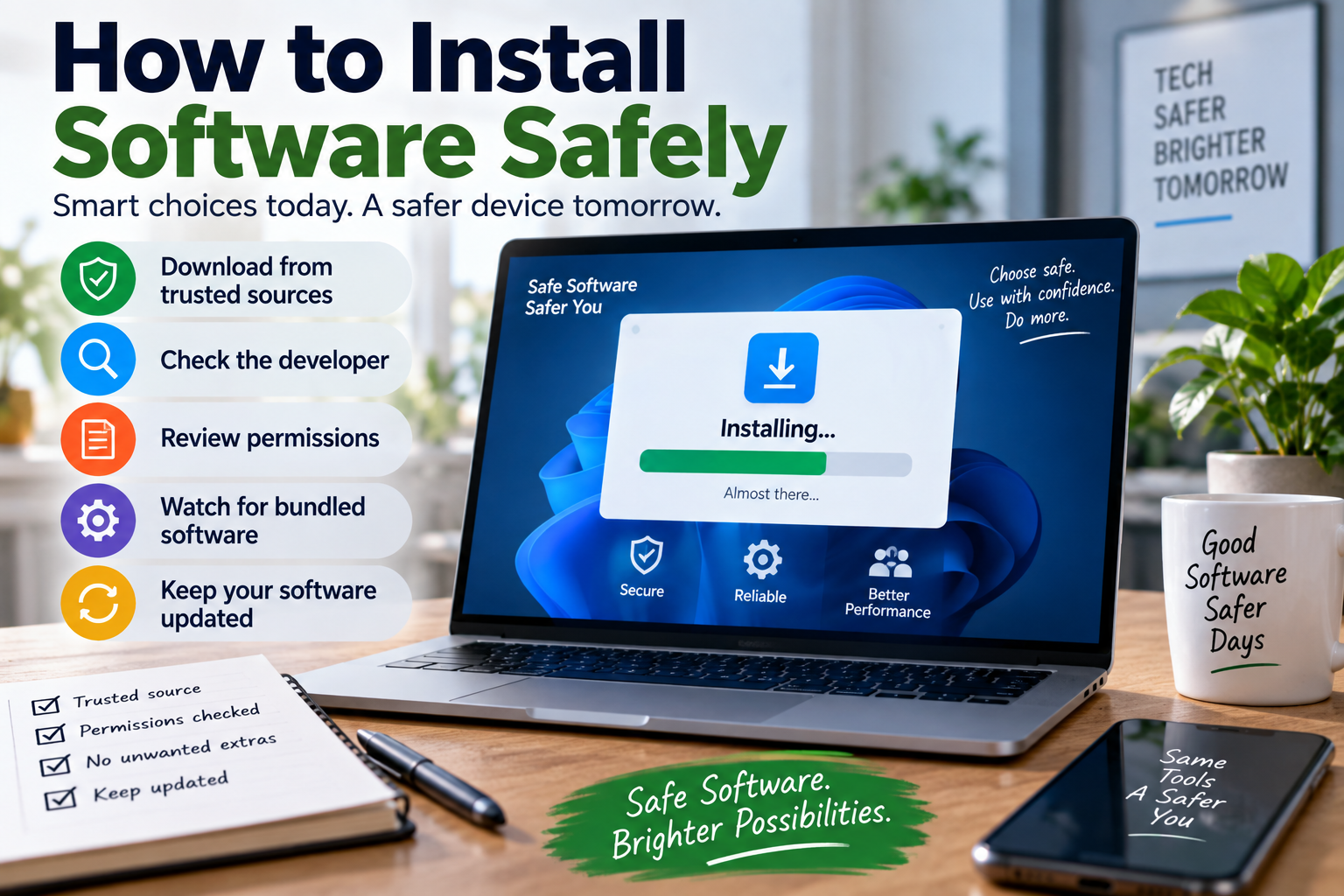
A Safe Software Installation Checklist
Before installing an unfamiliar application, ask:
Source
- Did I obtain it from a trusted source?
- Is the website actually operated by the developer?
- Did I avoid suspicious advertisements and download links?
Authenticity
- Is the developer clearly identified?
- Does the application match the official product?
- Does the download appear legitimate?
Permissions
- What access does the application request?
- Do those permissions make sense?
Installation
- Did I read the important installation options?
- Did I avoid unnecessary bundled software?
- Did I leave appropriate security protections enabled?
Maintenance
- Does the software receive updates?
- Is the developer still supporting it?
- Can I remove it easily if necessary?
Recovery
- Are important files backed up?
- Do I know what to do if the software behaves unexpectedly?
This checklist takes only a few moments but can prevent many avoidable problems.
Safe Installation on Different Devices
The general principles remain the same across computers, tablets, and smartphones, although the installation process differs.
Windows PCs
Use trusted download sources and pay close attention to installers, permissions, security warnings, and bundled software.
Macs
Use trusted software sources and pay attention to macOS security warnings, application permissions, and developer identity.
Android Devices
Prefer reputable app stores and carefully examine application permissions, developer information, and reviews.
iPhones and iPads
Use the official app distribution system and review permissions and privacy information before installing applications.
The exact security controls differ between platforms, but users should always consider source, authenticity, permissions, and maintenance.
Why Convenience Should Not Replace Verification
The fastest installation is not always the safest installation.
It may take only a few additional minutes to verify a developer, inspect permissions, read installation options, and confirm that a download is legitimate.
Those few minutes can prevent much larger problems later.
This is particularly important when software will have access to sensitive files, financial information, business systems, cameras, microphones, or other important resources.
Building a Safer Software Habit
Safe software installation becomes much easier when it becomes a routine.
Before downloading, pause.
Check the source.
Verify the developer.
Understand what the application does.
Review permissions.
Pay attention during installation.
Keep the software updated.
Remove it when it is no longer needed.
These habits can become almost automatic over time.
Making Every Installation a Security Decision
Installing software may seem like an ordinary technical task, but it is also a decision about trust.
The safest approach is not to assume that every application is dangerous. It is to avoid assuming that every application is trustworthy simply because it appears professional or is easy to download.
Use official sources whenever possible, verify the developer, avoid pirated and suspicious software, review permissions, watch for bundled applications, maintain backups, and keep both the operating system and installed applications updated.
A few minutes of careful verification before installation can significantly reduce the likelihood of introducing unnecessary security, privacy, or performance problems to a device. In an increasingly software-dependent world, knowing how to install applications safely is an essential part of responsible digital use.