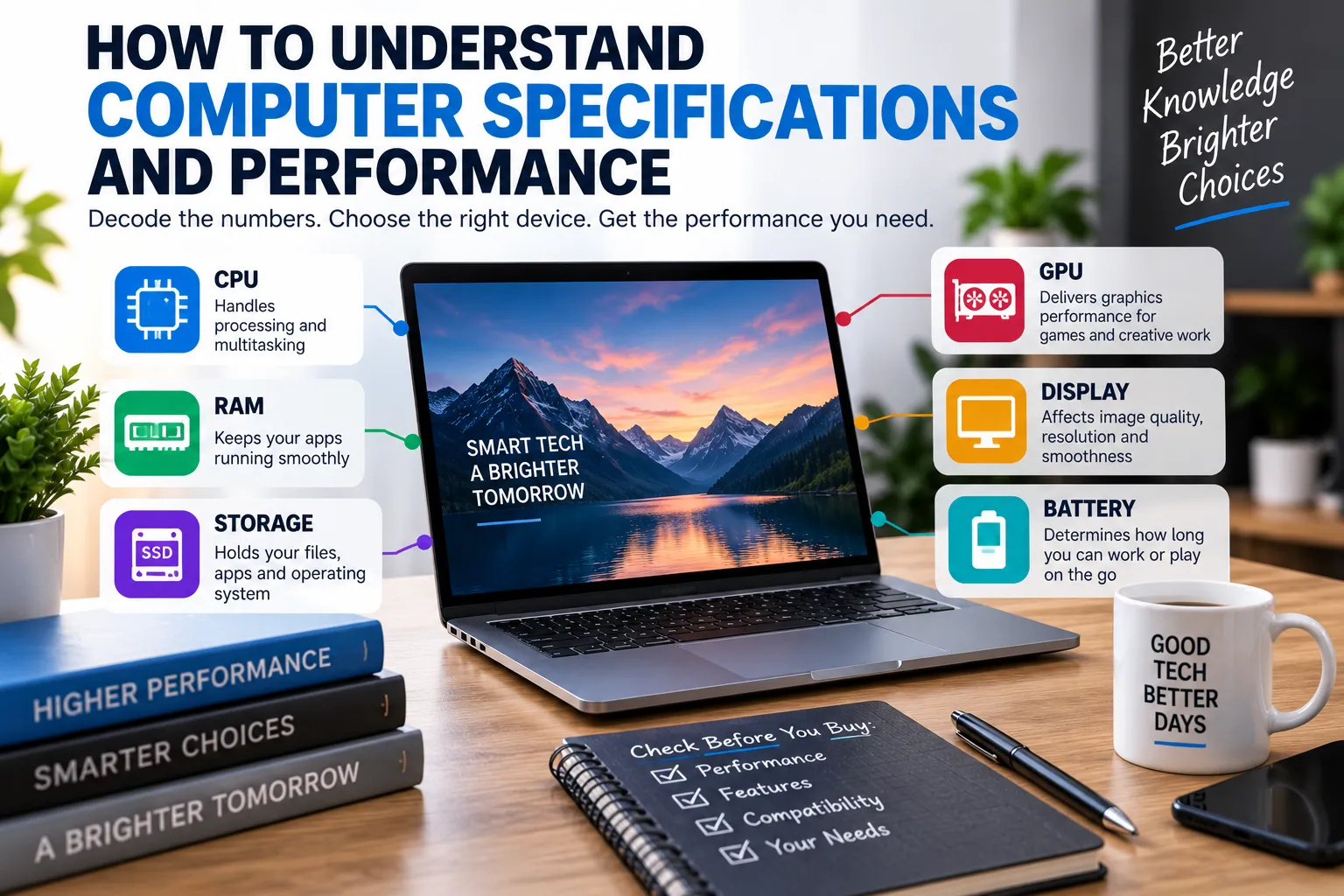
How to Understand Computer Specifications and Performance
Buying or comparing a computer can feel complicated when specifications are filled with unfamiliar numbers and technical terms.
A laptop might advertise a powerful processor, 16GB of RAM, a fast SSD, and a high-resolution display. Another computer might have similar-looking specifications but perform very differently in everyday use.
Understanding computer specifications is therefore about more than memorizing numbers. It means knowing what each component does, how the components work together, and which specifications actually matter for the tasks you perform.
Whether you are choosing a laptop for school, building a desktop for gaming, purchasing a computer for professional work, or simply trying to understand why one machine feels faster than another, learning how to read specifications can help you make better decisions.
The broader What Are Consumer Gadgets and How Do Modern Gadgets Work? provides useful context for understanding how computers fit into the larger world of modern consumer technology.
What Are Computer Specifications?
Computer specifications, often called specs, describe the hardware and capabilities of a computer.
They commonly include:
- Processor
- Graphics processor
- RAM
- Storage
- Display
- Battery
- Connectivity
- Operating system
- Ports
- Wireless technologies
- Size and weight
Manufacturers use specifications to communicate what a computer contains and what it is designed to handle.
However, specifications do not always tell the entire story.
Two computers can have similar components but deliver different experiences because of differences in cooling, power limits, software optimization, storage technology, display quality, or overall system design.
Why Computer Specifications Matter
Computer specifications help you determine whether a device is appropriate for your needs.
Someone who mainly browses the web and writes documents has very different requirements from someone editing 4K video, developing software, running scientific simulations, or playing demanding games.
Understanding specifications allows you to avoid two common mistakes:
Buying a computer that is too weak for your workload.
Paying extra for performance you will rarely use.
The goal is not to buy the computer with the biggest numbers.
The goal is to find the right balance between performance, price, portability, reliability, and your actual requirements.
The Processor Is the Computer’s Main General-Purpose Engine
The central processing unit, or CPU, performs many of the calculations required by the operating system and applications.
It handles tasks such as:
- Running applications
- Processing instructions
- Managing operating system functions
- Performing calculations
- Coordinating other hardware
- Handling many background processes
CPU specifications can be confusing because several different characteristics affect performance.
Important factors include:
- Processor architecture
- Number of cores
- Number of threads
- Clock speed
- Cache
- Generation
- Power consumption
- Thermal limits
A processor with a higher clock speed is not automatically faster than every processor with a lower clock speed.
Modern CPUs use different architectures and designs, meaning performance depends on much more than frequency alone.
What Are CPU Cores?
A CPU core is an individual processing unit within a processor.
A computer may have:
- 2 cores
- 4 cores
- 6 cores
- 8 cores
- 12 cores
- Many more in high-performance systems
More cores can allow a computer to handle more workloads simultaneously.
This can be particularly valuable for:
- Video rendering
- 3D rendering
- Software compilation
- Data analysis
- Virtual machines
- Scientific workloads
- Multitasking
However, not every application scales efficiently across many cores.
For basic web browsing or simple office work, adding more cores may provide relatively little benefit compared with investing in other components.
What Does CPU Clock Speed Mean?
Clock speed is commonly expressed in gigahertz, or GHz.
It represents the frequency at which a processor operates.
You might see specifications such as:
3.2 GHz
4.5 GHz
5.0 GHz
Higher clock speeds can contribute to faster performance, but clock speed should not be used as the only way to compare processors.
Modern CPUs can dynamically adjust their operating frequency depending on workload, temperature, power availability, and other factors.
Architecture and efficiency matter just as much.
What Is RAM?
Random access memory, usually called RAM, is temporary working memory used by the computer while applications are running.
When you open an application, files and instructions may be loaded into RAM so the processor can access them quickly.
Common capacities include:
- 4GB
- 8GB
- 16GB
- 32GB
- 64GB
- More for specialized systems
Having insufficient RAM can cause noticeable slowdowns, particularly when multiple applications or browser tabs are open.
For many general-purpose computers, 16GB provides a comfortable amount of memory for everyday multitasking, although requirements vary considerably depending on workload.
More RAM Does Not Always Mean More Speed
It is important to understand the difference between memory capacity and memory performance.
Having more RAM gives the computer more working space.
But adding RAM beyond what your workload requires does not necessarily make the computer dramatically faster.
For example, moving from an insufficient amount of memory to an adequate amount can produce a major improvement.
Moving from an already sufficient amount to a much larger capacity may provide little noticeable benefit for everyday tasks.
This is why RAM should be matched to workload rather than treated as a simple “more is better” specification.
What Is RAM Speed?
RAM also has performance characteristics such as:
- Data transfer rate
- Latency
- Memory type
- Number of channels
- Compatibility with the processor
Modern systems may use different generations of memory technology, each with different characteristics.
For most buyers, however, capacity and platform compatibility are more important than obsessing over small differences in memory specifications.
Understanding Storage
Storage is where a computer permanently keeps files and software.
It holds:
- Operating system files
- Applications
- Documents
- Photos
- Videos
- Games
- Projects
- Downloads
Modern computers primarily use solid-state drives, or SSDs.
Older systems may use traditional hard disk drives, or HDDs.
SSD vs HDD
SSDs use flash memory and contain no traditional spinning disk.
They generally provide:
- Faster startup
- Faster application loading
- Faster file access
- Better responsiveness
- Lower mechanical noise
- Better resistance to physical shock
HDDs typically provide more storage capacity for the money, making them useful for large collections of files when maximum speed is less important.
For a modern primary computer drive, an SSD generally provides a significantly better everyday experience.
Understanding Storage Capacity
Storage capacity is usually measured in:
- Gigabytes (GB)
- Terabytes (TB)
A computer might have:
256GB SSD
512GB SSD
1TB SSD
2TB SSD
The right capacity depends on what you store.
Someone who mainly works with documents may be perfectly comfortable with a relatively modest drive.
A photographer, video editor, gamer, or software developer working with large projects may need considerably more storage.
Remember that the operating system and applications already consume some of the advertised capacity.
What Is a GPU?
The graphics processing unit, or GPU, is designed to handle graphics and highly parallel computational workloads.
GPUs are particularly important for:
- Gaming
- 3D modeling
- Video editing
- Animation
- CAD
- Visual effects
- Machine learning
- Certain scientific workloads
Some computers use integrated graphics, where graphics processing is built into the processor or system platform.
Others use a dedicated GPU with its own processing resources and memory.
Integrated vs Dedicated Graphics
Integrated graphics can be perfectly adequate for many everyday tasks.
They are commonly suitable for:
- Web browsing
- Office applications
- Streaming video
- Basic photo editing
- Casual gaming
- General productivity
Dedicated graphics processors are more appropriate when demanding graphical workloads are involved.
They can provide significantly greater performance for gaming, professional creative applications, 3D work, and other GPU-intensive tasks.
However, dedicated graphics can also increase:
- Cost
- Power consumption
- Heat
- Device size
The right choice depends on what you actually intend to do.
Understanding GPU Memory
Dedicated graphics cards often have their own memory, known as VRAM.
VRAM is used to store graphical data such as:
- Textures
- Frame buffers
- 3D assets
- Rendering information
Higher-resolution games and complex creative projects can require more VRAM.
However, VRAM capacity should be evaluated alongside the GPU’s actual processing capability.
A large amount of VRAM does not automatically turn a low-performance GPU into a high-performance one.
What Is a Display’s Resolution?
Display resolution describes how many pixels appear on the screen.
Common resolutions include:
- 1920 × 1080
- 2560 × 1440
- 3840 × 2160
Higher resolution generally produces a sharper image because more pixels are displayed.
However, higher resolution can also require more graphics processing power.
A high-resolution screen may be desirable for photography, design, video editing, reading, and general visual quality.
For gaming, however, higher resolution can make it more difficult for a GPU to maintain high frame rates.
What Is Refresh Rate?
Refresh rate is measured in hertz, or Hz.
It describes how many times the display can refresh each second.
Common refresh rates include:
- 60Hz
- 90Hz
- 120Hz
- 144Hz
- 165Hz
- 240Hz
A higher refresh rate can make motion appear smoother.
This can be particularly noticeable when:
- Scrolling
- Gaming
- Moving windows
- Watching certain types of content
Refresh rate is therefore an important specification for people who prioritize smooth motion.
Display Resolution and Refresh Rate Are Different
Resolution and refresh rate measure different characteristics.
Resolution = how many pixels are displayed.
Refresh rate = how frequently the display updates.
A computer can have a very high-resolution screen with a relatively modest refresh rate.
Another might have a lower resolution but an extremely high refresh rate.
The better choice depends on how you use the computer.
Understanding Battery Capacity
For laptops, battery specifications can help estimate potential battery life.
Battery capacity may be expressed in:
- Watt-hours (Wh)
- Milliamp-hours (mAh)
Watt-hours are particularly useful when comparing laptops because they directly describe the amount of stored electrical energy.
However, battery capacity alone does not determine battery life.
Actual runtime also depends on:
- Processor efficiency
- Display brightness
- Screen resolution
- Refresh rate
- Wireless activity
- Application workload
- Battery health
- Operating system settings
A laptop with a smaller battery can sometimes last longer than one with a larger battery if it uses significantly less power.
Why Cooling Affects Performance
One of the least understood aspects of computer performance is cooling.
Processors and graphics processors generate heat when working hard.
If temperatures become too high, the system may reduce operating speeds to control heat.
This behavior is commonly known as thermal throttling.
As a result, two computers with the same processor can perform differently if one has a much better cooling system.
Cooling depends on factors such as:
- Fans
- Heat pipes
- Vapor chambers
- Heatsinks
- Airflow
- Chassis design
- Power limits
This is one reason specifications should never be considered in isolation.
Power Limits Matter
Processors and graphics processors operate within power constraints.
A laptop manufacturer may configure a processor to use less power to improve:
- Battery life
- Temperature
- Noise
- Device thickness
Another manufacturer may allow the same processor to consume more power for higher sustained performance.
This means the processor’s name alone may not tell you exactly how fast a laptop will perform.
Why Laptop Design Affects Performance
A computer is a complete system.
Processor performance, cooling, battery, memory, storage, display, and chassis design all interact.
The article How Laptop Hardware Affects Performance and Everyday Use explores this relationship in greater detail.
This is particularly important when comparing thin laptops with larger performance-oriented machines.
A thin laptop may prioritize portability and battery efficiency.
A larger computer may have more room for cooling and higher-power components.
Neither approach is automatically better.
Understanding Benchmarks
Benchmarks are tests designed to measure hardware performance.
They can help compare:
- CPUs
- GPUs
- SSDs
- Memory
- Complete systems
Benchmark results can be useful, but they should be interpreted carefully.
A benchmark measures a specific workload.
Your real-world workload may be completely different.
For example, a processor that performs exceptionally well in a rendering benchmark may not provide a dramatic advantage when browsing websites or writing documents.
Synthetic Performance vs Real-World Performance
Synthetic benchmarks are useful because they provide standardized measurements.
But real-world performance depends on the applications you actually use.
For example:
A gamer should look at gaming benchmarks.
A video editor should examine performance in the applications used for editing.
A programmer may care about compilation times, virtual machines, and development environments.
A student may care more about responsiveness, battery life, keyboard quality, and portability.
The best benchmark is therefore one that resembles your real workload.
Understanding Single-Core and Multi-Core Performance
CPU benchmarks often distinguish between single-core and multi-core performance.
Single-core performance measures how quickly a workload can run primarily on one processing core.
It can matter for applications that do not scale efficiently across many cores.
Multi-core performance measures how well the processor handles workloads that can use multiple cores simultaneously.
This can be particularly important for:
- Rendering
- Encoding
- Compilation
- Heavy multitasking
- Scientific calculations
Neither measurement is universally more important.
It depends on the software being used.
Software Can Affect Hardware Performance
Hardware does not operate independently from software.
The operating system, drivers, applications, firmware, and background services can all affect performance.
Two computers with similar hardware can feel different because of differences in:
- Software configuration
- Drivers
- Background applications
- Power settings
- Storage management
- Updates
- Application optimization
A well-optimized computer can therefore feel significantly more responsive than a poorly configured system with similar specifications.
Understanding Ports and Connectivity
Computer specifications also include physical and wireless connectivity.
Common ports and technologies include:
- USB
- USB-C
- HDMI
- DisplayPort
- Ethernet
- Audio connectors
- Wi-Fi
- Bluetooth
The number and type of ports can become important depending on your workflow.
A content creator might need high-speed external storage and multiple displays.
A business user might need docking support.
A student may simply need USB and wireless connectivity.
Port selection is easy to overlook when focusing heavily on processor and memory specifications.
Why Networking Specifications Matter
Internet performance is not determined exclusively by your internet provider.
The computer itself also has networking capabilities.
Wireless technologies can differ in:
- Speed
- Range
- Latency
- Supported standards
- Network efficiency
For cloud applications, online gaming, video conferencing, streaming, and large file transfers, network performance can affect the overall experience.
Understanding Operating Systems
The operating system manages the computer’s hardware and provides the environment in which applications run.
Common desktop operating systems include:
- Windows
- macOS
- Linux
The operating system affects:
- Software compatibility
- Hardware support
- Security
- User interface
- File management
- Updates
- Available applications
When choosing a computer, make sure the operating system supports the applications and workflows you depend on.
Computer Specifications Should Match Your Workload
One of the most useful ways to understand specifications is to think in terms of workloads.
Basic Productivity
Typical activities include:
- Web browsing
- Word processing
- Online meetings
- Spreadsheets
- Streaming
These tasks generally do not require extreme hardware.
A balanced processor, adequate RAM, and an SSD can provide a responsive experience.
Professional Productivity
Professional users may work with:
- Large spreadsheets
- Databases
- Business applications
- Development tools
- Multiple monitors
- Virtual machines
These workloads can benefit from additional memory, stronger processors, and faster storage.
Creative Work
Creative professionals may use:
- Photo editing
- Video editing
- 3D rendering
- Audio production
- Graphic design
- Animation
These workloads can place heavy demands on CPUs, GPUs, RAM, storage, and displays.
Gaming
Gaming performance depends heavily on:
- GPU capability
- CPU performance
- RAM
- Storage
- Display resolution
- Refresh rate
- Game optimization
For many modern games, the GPU is one of the most important components.
How to Compare Two Computers
When comparing computers, avoid looking at only one specification.
Instead, create a complete picture.
Consider:
CPU + GPU + RAM + Storage + Display + Cooling + Battery + Software + Price
For example, Computer A might have a more powerful CPU but a weaker GPU.
Computer B might have slightly less CPU performance but significantly stronger graphics performance.
For a video editor or gamer, Computer B could be the better choice.
For someone performing CPU-heavy calculations, Computer A might be preferable.
The correct answer depends on the workload.
A Simple Performance Hierarchy
A useful way to think about computer performance is:
Task → Software → Hardware Requirement → System Balance
Start with the task.
Determine which software performs that task.
Identify the hardware requirements of the software.
Then make sure the complete system is balanced.
This approach is much more reliable than choosing components based purely on marketing numbers.
Don’t Ignore the User Experience
Performance is important, but it is not the only thing that matters.
A computer can be technically fast but unpleasant to use because of:
- Poor keyboard
- Weak trackpad
- Dim display
- Loud fans
- Excessive heat
- Poor battery life
- Heavy construction
- Limited ports
For laptops especially, the entire experience matters.
If you are shopping for a portable computer, Everything You Need to Know Before Buying a Laptop can help put individual specifications into the broader context of choosing a complete device.
Understanding Specifications Helps Prevent Overspending
Computer manufacturers often offer multiple configurations of the same product.
One model might have:
- 8GB RAM
- 256GB storage
Another might have:
- 16GB RAM
- 512GB storage
A premium version might offer:
- 32GB RAM
- 1TB storage
- A more powerful processor
- Dedicated graphics
The most expensive configuration is not necessarily the best value.
If your workload does not require the additional performance, the extra money may be better spent elsewhere.
How to Choose the Right Performance Level
Think about your current needs and your expected future needs.
Choose Basic Hardware If You:
- Mostly browse the web
- Write documents
- Watch videos
- Use email
- Perform simple administrative tasks
Choose Mid-Range Hardware If You:
- Multitask heavily
- Work with large spreadsheets
- Edit photos
- Develop software
- Use demanding productivity applications
- Frequently use multiple applications simultaneously
Choose High-End Hardware If You:
- Edit high-resolution video
- Render 3D projects
- Run demanding simulations
- Use professional creative software
- Run virtual machines extensively
- Play demanding games at high settings
- Perform advanced computational workloads
The ideal specification is the one that provides enough performance without creating unnecessary expense.
The Importance of Balanced Hardware
A computer is only as strong as the balance of its components for a particular workload.
A powerful processor paired with inadequate RAM can create limitations.
A high-end GPU paired with a weak CPU may limit certain games and applications.
A fast processor paired with a slow hard drive can make the system feel less responsive.
A large amount of RAM does not compensate for insufficient graphics performance in demanding 3D workloads.
Balance matters.
How to Read a Computer Specification Sheet
When looking at a specification sheet, break it into categories.
Processor
Check:
- Model
- Generation
- Cores
- Threads
- Performance class
Graphics
Check:
- Integrated or dedicated
- GPU model
- VRAM
- Intended workload
Memory
Check:
- RAM capacity
- Memory type
- Upgradeability
Storage
Check:
- SSD or HDD
- Capacity
- Interface
- Upgradeability
Display
Check:
- Resolution
- Refresh rate
- Panel technology
- Size
- Brightness
- Color characteristics
Connectivity
Check:
- USB
- USB-C
- HDMI
- Wi-Fi
- Bluetooth
- Ethernet
Physical Design
Check:
- Weight
- Thickness
- Battery
- Cooling
- Build quality
Looking at specifications this way makes complicated product pages much easier to understand.
A Better Way to Think About Computer Performance
Computer performance is not a single number.
It is the combined result of hardware, software, workload, thermals, power limits, and system design.
A computer that is extremely fast at one task may be ordinary at another.
The best computer is therefore not necessarily the one with the highest benchmark score.
It is the one that delivers the right performance for the work you actually need to do.
Turning Specifications Into Better Buying Decisions
Understanding computer specifications gives you a much stronger position when shopping for technology.
Instead of being influenced primarily by processor names, RAM numbers, storage capacity, or marketing claims, you can evaluate the complete system.
Start with your workload.
Identify the software you use.
Determine which components matter most.
Compare real-world performance.
Consider battery life, cooling, display quality, portability, connectivity, and upgradeability.
Then compare the total package against the price.
Once you understand what the specifications actually mean, computer shopping becomes much less about chasing impressive numbers and much more about choosing technology that genuinely fits the way you work, create, communicate, and live.