Google Gemini on Windows: Everything Users Need to Know About the New Desktop AI App
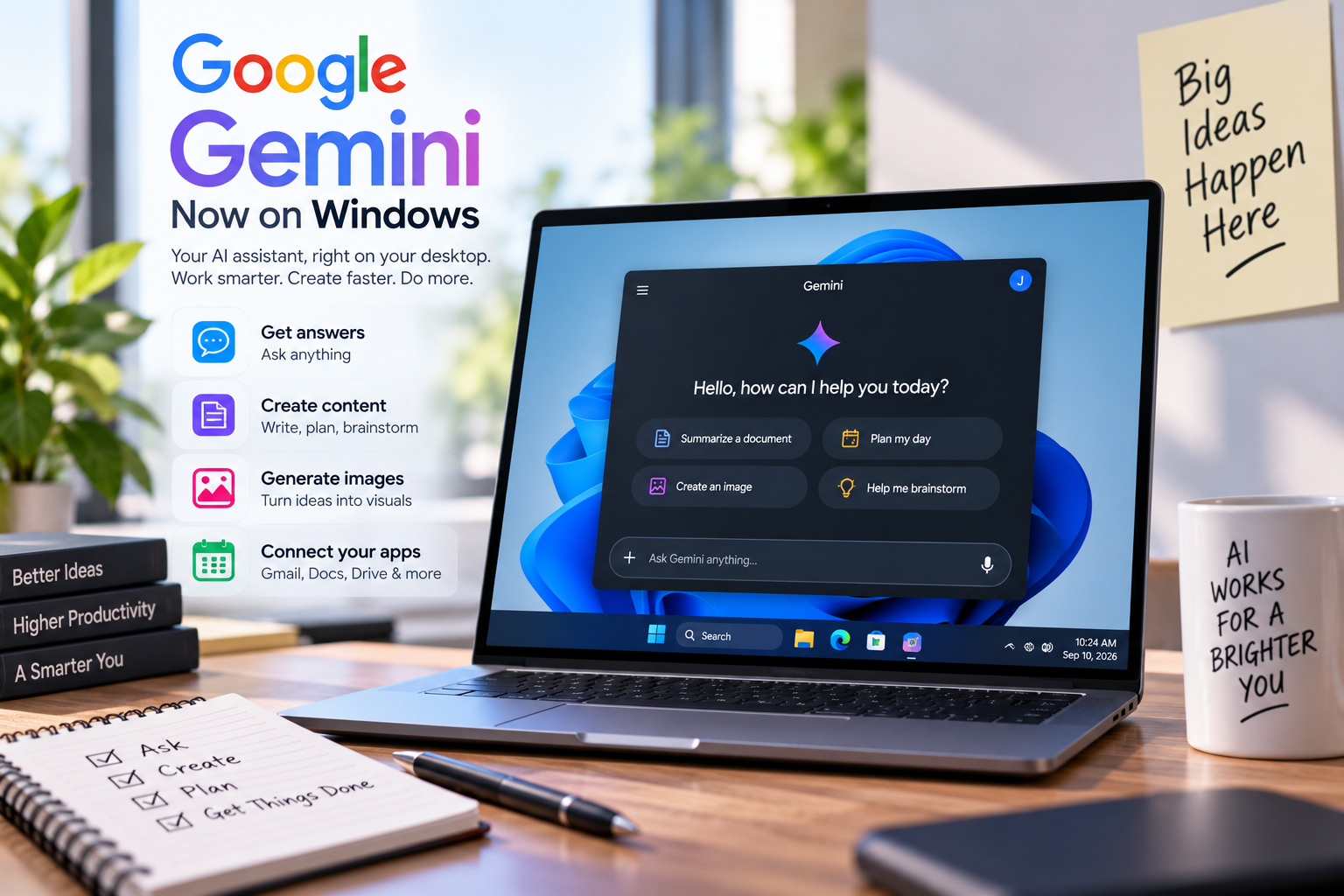
Google has brought Gemini directly to Windows PCs with a new desktop application designed to make artificial intelligence easier to access without constantly switching between browser tabs.
The new Gemini app for Windows launched on September 10, 2026, giving users a dedicated way to access Google’s AI assistant alongside their everyday desktop applications. The app is designed around quick access, with a keyboard shortcut that can bring Gemini onto the screen while users are working in another application.
For Windows users who already rely on Gemini through a web browser or smartphone, the desktop application represents a significant shift in how the service can fit into everyday computer workflows.
What Is the New Gemini Windows App?
The Gemini Windows app is Google’s dedicated desktop version of its Gemini AI assistant.
Rather than requiring users to open a browser and navigate to the Gemini website, the application sits on the Windows desktop and can be launched when needed.
Google says the app is designed to work alongside other applications, allowing users to ask questions, draft content, brainstorm ideas and perform other AI-assisted tasks without leaving their current workflow.
The approach reflects a broader shift toward AI becoming an integrated part of personal computing rather than something people access only through a separate website.
For readers interested in the broader role of software on computers, how desktop applications work on personal computers provides useful background on why dedicated applications can offer a different experience from browser-based services.
How to Open Gemini Quickly on Windows
One of the most noticeable features of the new app is its keyboard shortcut.
Windows users can press Alt + Space to summon Gemini from their desktop. The shortcut is designed to make the assistant available while users are working in another application.
For example, someone writing a document could quickly ask Gemini for help generating an outline. A student could ask for an explanation of a difficult concept, while a professional could use the assistant to brainstorm ideas without opening a separate browser window.
The shortcut can also be customized through the Gemini app’s settings.
This quick-access approach is important because the value of an AI assistant often depends on how easily it can be used at the moment a question or problem appears.
What Can Gemini Do on a Windows PC?
The Windows application brings many of the capabilities users already associate with Gemini into a dedicated desktop environment.
Users can ask questions, create drafts, summarize information, brainstorm ideas and work through complex tasks.
Google also highlights access to features for generating images and videos, as well as deeper research and other AI capabilities. Availability can vary depending on the user’s account, region and subscription.
The application also provides access to a dedicated Gemini workspace where users can carry out longer or more involved tasks.
That makes the Windows version more than simply a smaller window containing a chatbot. Google is positioning it as a general-purpose AI workspace that can sit alongside other desktop software.
Gemini Can Connect With Google Apps
One of the more important capabilities is Gemini’s connection with Google’s productivity ecosystem.
Depending on account permissions and feature availability, users can work with information from services such as Gmail, Google Drive, Google Docs and Calendar.
This could make Gemini particularly useful for people who already depend heavily on Google’s productivity tools.
For example, a user might ask Gemini to locate information in an email thread, summarize a document or bring together information from multiple sources.
The ability to connect information across services is part of a larger trend in which AI assistants are becoming interfaces for multiple applications rather than isolated chat tools.
Readers looking to understand the wider software ecosystem can also explore the complete guide to apps to see how applications have evolved into essential tools for everyday computing.
Gemini Spark Brings More Agentic Capabilities
Google is also integrating Gemini Spark, which it describes as a personal AI agent designed to handle more complex tasks.
Rather than simply responding to one prompt at a time, agentic systems are designed to work through multiple steps toward a larger objective.
This could be useful for tasks involving research, planning and synthesis.
The important distinction is that an AI agent can potentially perform a sequence of related actions instead of requiring the user to provide instructions for every individual step.
However, users should still review important results. AI systems can make mistakes, misunderstand instructions or produce incomplete information.
Image and Video Creation Comes to the Desktop
The Gemini desktop experience also puts Google’s creative AI tools closer to users’ everyday workflows.
The Windows application provides access to image-generation capabilities, including Google’s Nano Banana technology, while Google’s desktop Gemini experience also promotes video creation through Gemini Omni.
For creators, marketers, students and business users, having these tools available from the desktop could make it easier to move between planning, writing and visual production.
Instead of opening multiple specialized websites, users can increasingly use a single AI workspace for several stages of a project.
This reflects the wider transformation taking place across the technology industry, where AI is being incorporated into creative software, productivity tools and consumer applications.
For a broader look at this trend, the complete guide to emerging technology and innovation explores how new technologies can change the way people work and interact with digital services.
What Are the Windows System Requirements?
Google says the Gemini Windows desktop app requires:
- Windows 10 or later
- 8 GB of RAM or more
- At least 200 MB of available storage
- A stable internet connection
- A compatible Google Account
The application supports both x64 and ARM64 Windows systems.
That means the minimum requirements are relatively accessible for modern Windows computers, although the quality and speed of individual AI features can still depend on the user’s hardware, connection and account.
Some features may also have separate availability requirements.
Does Gemini Replace the Gemini Website?
Not necessarily.
The desktop application and the web version serve similar purposes, but the Windows app is designed around convenience and integration with the desktop.
The biggest difference is accessibility.
Instead of opening a browser, navigating to Gemini and starting a conversation, users can invoke the application almost immediately with Alt + Space.
For people who use AI occasionally, this may be a relatively small improvement. For people who use AI throughout the day, however, removing those extra steps could make the assistant much more useful.
Google also says that the same Google account can be used across desktop, web and mobile, with chat history and memory syncing across supported devices.
How the New App Could Change Windows Workflows
The biggest potential impact of Gemini on Windows may not come from any single feature.
It comes from making AI assistance part of the normal desktop workflow.
Imagine writing an email and quickly asking Gemini to make it clearer. A developer could ask for help understanding an error message. A student could request an explanation of a difficult concept. A business user could ask for help organizing information from documents.
These activities can happen without completely abandoning the application already being used.
That kind of integration is an important part of how AI is changing life, as artificial intelligence increasingly moves from standalone tools into everyday products and services.
Privacy and Data Still Matter
The convenience of a desktop AI assistant also raises important questions about privacy.
Users should understand what information they provide to an AI system and what permissions connected services require.
This becomes particularly important when Gemini is used alongside Gmail, Google Drive, documents, calendars or other potentially sensitive information.
Users should review account settings and permissions carefully, especially when using Gemini for work-related or confidential material.
AI-generated responses should also be checked before being used for important decisions, professional advice or sensitive communications.
What About Businesses and Workplaces?
The Windows Gemini application could be particularly interesting for businesses because desktop computers remain central to many professional workflows.
Employees may use AI to draft documents, summarize information, brainstorm ideas or research topics while continuing to work within familiar Windows applications.
However, organizations will need to establish clear policies around AI use.
Businesses may need to determine what information employees are permitted to share with AI systems, which accounts should be used and how AI-generated material should be reviewed.
The technology can potentially improve productivity, but responsible implementation will be just as important as access to the tools themselves.
How Gemini Fits Into the Growing AI Desktop Race
Google’s Windows launch comes as technology companies increasingly compete to make AI assistants part of the operating system and desktop experience.
The traditional model involved opening a website or application whenever a user wanted AI assistance.
The emerging model is different. AI is becoming something users can summon from almost anywhere.
This could eventually change expectations for personal computers.
Instead of treating AI as another application, users may increasingly expect their computers to understand what they are doing, provide contextual assistance and help them move between different tasks.
Google’s Gemini Windows app is an important step in that direction.
What Users Should Expect Next
Google has indicated that more native desktop capabilities will roll out to Windows over time.
That means the initial version should be viewed as the beginning of Google’s Windows desktop strategy rather than a finished endpoint.
As the application develops, users could see deeper integrations, additional automation capabilities and more ways for Gemini to understand and assist with desktop workflows.
The pace of development will also depend on how users respond to the new experience and which features prove most useful in everyday computing.
A New Way to Put AI Within Reach
Google Gemini’s arrival on Windows makes AI assistance considerably easier to access for PC users.
The Alt + Space shortcut, Google app integrations, dedicated workspace, creative tools and emerging agentic capabilities give the application a broad range of potential uses.
For casual users, it offers a faster way to access Gemini. For students, creators and professionals, it could become a useful part of daily computer work.
The larger significance is that AI is moving closer to where people already spend much of their digital lives: the desktop.
As applications become more intelligent and AI assistants become more deeply integrated into operating systems, the personal computer is gradually changing from a collection of separate programs into a more connected environment where users can ask for help, create content and complete tasks without constantly switching between tools.